How do you restore an earlier version of a Google Doc?
Use version history to recover an older draft—or copy it first when you only need one missing passage.
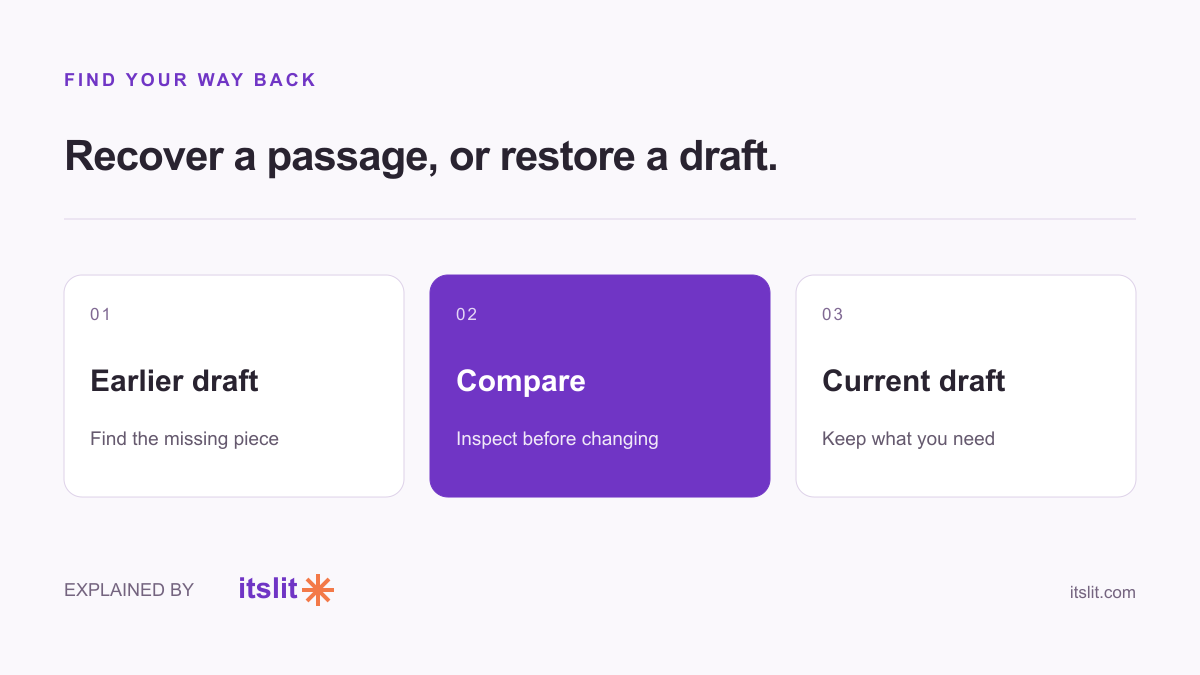
On a computer, open your Google Doc, choose the Last edit control at the top right, select the older version, and use the restore option. You need editing permission to browse version history. Those are the essentials in Google’s version-history instructions.
Find the version you actually want
- Open the document on your computer.
- Select Last edit at the top right.
- Choose a previous entry in the history panel. Expand grouped entries when necessary.
- Inspect the text before deciding whether to restore it.
Our suggestion: look for the missing sentence or section, rather than choosing a timestamp from memory. If a teammate is working on the same document, tell them what you are trying to recover before making a change.
Restore the draft—or copy it first
To use the earlier draft, select the restore control above the document and confirm. Alternatively, open the older version’s More menu, choose the copy option, and give the copy a name and location. Google documents both routes in its help guide.
Consider a hypothetical shared travel plan. Yesterday’s version has the restaurant list you lost, while today’s has everyone’s updated arrival times. Copying yesterday’s draft gives you a place to find the restaurants before deciding what belongs in the current plan. Recovering a passage and replacing a whole draft are different decisions.
Make the next rescue easier
Google also lets you name versions. Entries can be merged, so the history is not necessarily a separate snapshot of every edit.
For future milestones, we suggest names that explain the state of the work: “Budget approved” says more than “final 3.” Before a major rewrite, agree with collaborators which draft represents the starting point.
After recovery, read through the affected section and check nearby links, names and dates. The goal is a coherent document, not merely the return of a missing paragraph.
Keep exploring: Explore AI-assisted writing.
Sources
What remains uncertain
These instructions follow Google’s computer help, checked September 26, 2026. They were not tested hands-on. Available history and editing permission affect what you can recover; this does not cover mobile apps or deleted-file recovery.
How this story was prepared
AI-assisted article prepared using the linked official documentation, checked September 26, 2026; not independently human-reviewed or tested hands-on. Examples are hypothetical.